
Great news: version 1.2 of the plugin has been released! Now you can preload more images with a single piece of shortcode.
WP Image Preloader is a plugin for WordPress, made to help you speed up your blog. It pre-loads images using the Javascript technique.
How to preload your images? You can do this in two ways:
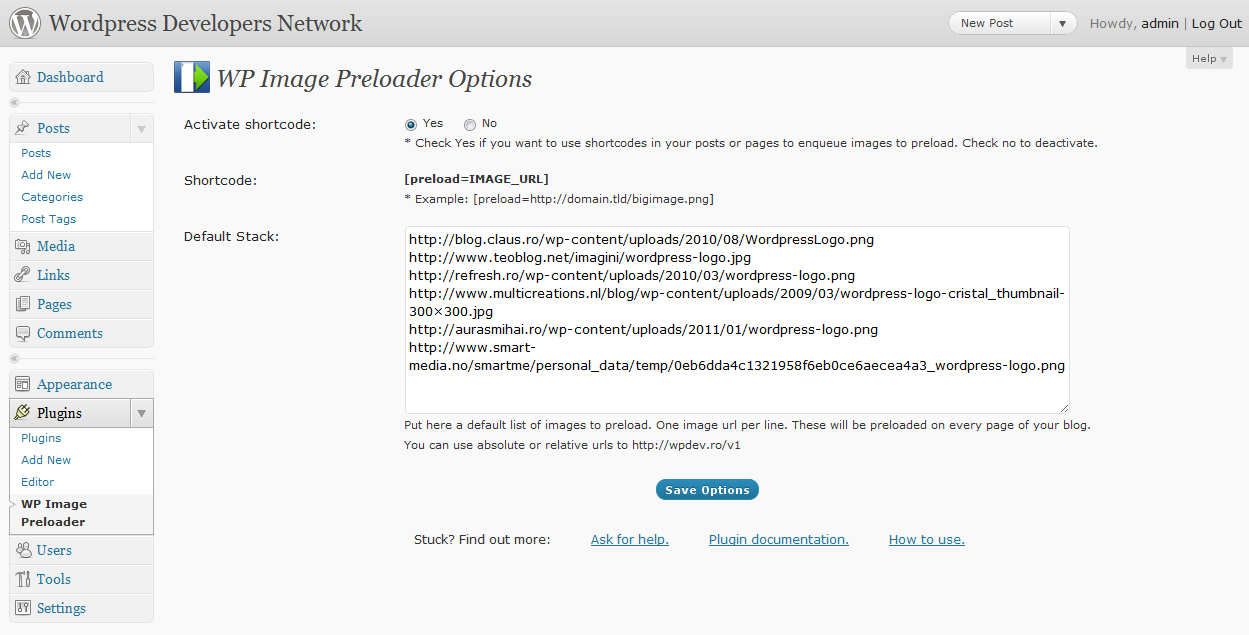
- Add the relative or absolute url of each imag into the default stack. This way, the image(s) will be preloaded on every page of the blog. Use this if you have hover images for menus.
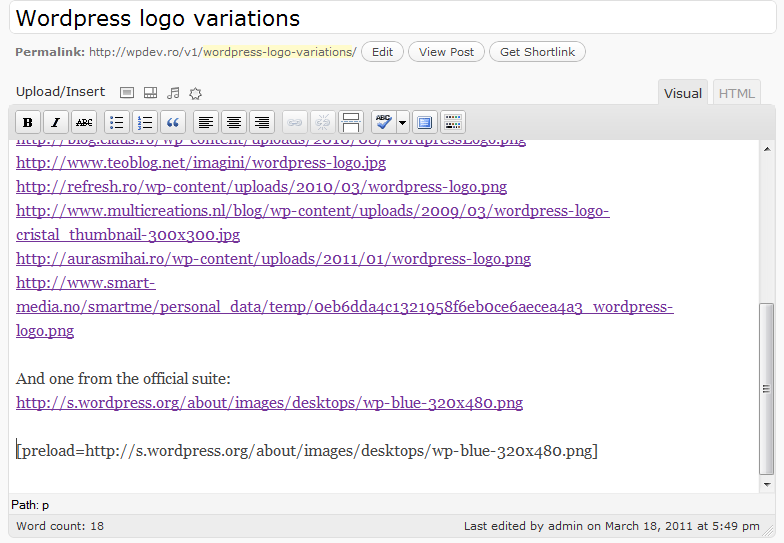
- By adding the shortcode [preload=image_url] for one image or [preload=image_url1, image_url2, image_url3] for more images, into your posts. Note you have to activate the shortcode from the plugin configuration page first. This way the image will be preloaded only when viewing that specific post or page. You can also use relative or absolute urls.
Screenshots:
Documentation:
WP Image Preloader uses a jQuery script to preload images. The basic functionality of the script uses the same document.createElement('img') traditional DOM method. You can find the code in /js/jquery.imagepreloader.js file.
As per server-side, the plugin uses a global array (stack) $WPIMGP_Queue = array(), to store absolute urls to the images. The functions used to add urls to the global stack are: wpimgpreloader_build_default_stack() and wpimgpreloader_parse_stack_from_content($content="") . So the default stack is added to the array during wp_head action, while images preloaded using shortcodes will be filtered during the_content.
All the urls, are parsed using wpimgpreloader_parse_url($url) function, which also decides whether it should add the blog url at the beginning or not.
After parsing the all of the urls, what remains to do is to output the javascript code for image preloading. This action takes pace during the wp_footer by the wpimgpreloader_preload_js() function. If you take a look at it you’ll notice it first calls another function, wpimgpreloader_js_string_from_array($array, $derrive=false, $value=false) which returns a Javascript – formatted version of the input array.
How to use this plugin with your theme?
Course you can install the plugin and use it as it is, out-of-the-box. But, if you’d prefer you can also „embed” it’s functionality in your theme, and avoit having users to install it. To do this, you need to add two more files to your theme: wp-image-preloader-portable.php and jquery.imagepreloader.js, provided with the plugin. Then:
– enqueue the Javascript file (jquery.imagepreloader.js) to load in the header of your theme.
– include the PHP file (wp-image-preloader-portable.php) in your functions.php.
– call wpimgpreloader_enqueue($images) to add urls to your images into the stack. You can use as param a string (single url) or an array of urls, absolute or relative to the blog url.
– in the footer of your theme call wpimgpreloader_preload_js(TRUE) to print the image preloader Javascript.
Notes:
This plugin only generates the Javascript code to preload images. How fast the images are loaded is entirely the job of the web server serving the image(s). Use it for images you may need later in the page (like hover) , not for images loaded anyway with the <img> tag.
As the plugin name says it is for pre-loading images not for optimizing image(s) load.
Download:
You can always download the latest version from wordpress plugin’s page.
Questions?
If you need help, have a question or suggestions, please add a comment to this article. Comments are held for moderation, but don’t worry I’ll try to get you an answer asap.
this is brilliant! solved my super slow load time problem :] thanks!
Thank you!
Looks great!
I am a newbie but I wonder if you can you enqueue several url using one shortcode like this:
[preload=url1, url2, url3, …]
or you need to write
[preload=url1]
[preload=url2]
[preload=url3]
…?
thank you
Well, one piece of shortcode will preload a single image, so you’ll have to use
[preload=url1]
[preload=url2] …
to preload more images.
But, it’s a great idea for an update thanks!
I have a problem:
[preload=url1]
[preload=url2] …
in this way, the wordpress editor will add redundant , make the post too long with the blank, so i think whether [preload=url1, url2, url3, …] is better, and if the preload function be added to wordpress media library to make preload images more easy, that will be amazing.
Ok folks! There’s an update coming soon, so stay tuned!
Can you add an option to automatically preload all images that are referenced in active theme’s style.css?
Sorry, you comment was marked as spam, so I’ve approved it just now. Here’s your answer: Unfortunately not… . That would require to parse a css file, and that’s beyond the purpose of my plugin. But, you can add as many images you want in the „Default Stack”, on the Wp Image Preloader page under Plugins. It’s not automattically but you can identify what images need more time to load and put their urls there.
Also you should avoid using very large images, no matter how fast your server delivers the content, the visitors with slow connections won’t get it.
Causes error! to appear occasionally on reloading page. (think its when certain images don’t appear – maybe server error?)
Hi Gary,
There’s no way WP Image Preloader would show a dialogue box. Unless it’s conflicting another plugin – less likely, or you have a different plugin showing it.
Can you describe me the steps to re-produce the error?
Hey Adrian! The plugin works perfectly! You saved me a lot of trouble! :D Now, I wanted to give you an idea for an update, that I think would be very useful and practical for many people. Think of a portfolio site with lots of images, or very big files (as a photo retocuher or 3d artist could need to upload to the site); in those cases, preloading all the images when opening a page (or post) may slow down the loading of the page too much (Am I right on this? haha, I’m no programmer or anything, but I I see that a page on my site that preloads around 50 pics takes about 8 seconds to completely open the page) so, the solution would be to preload a small number of images, let’s say 10, and when the web visitor is looking at the image number 5, then the preloding of the next 10 images starts… and so on… It could also be programmed on percentages, so as the number of images on the page (or post) increases, the plugin would stablish a smallest percentage to preload. So, if you have 30 pics, it could preload on fragments of 33,3% (10 pics at a time) but if you have 100 pics, the plugin would preload on fragments of 10% (resulting on also 10 pics at a time), that way, the number of pics to preload is never too big. Also you could let the plugin user to choose those numbers or percentages… The only disadvantage I find in this method is that it would not work for gallerys that have a visible thumbnail navigation.. becuase if the users decides to jump to another image, let’s say the numer 20, the it would not be preloaded. Well… it would work for slideshows anyway :) I hope all that mede sense.. and let me know if I’m wrong on anything! :D Bye! and Thanks!
Hi Margaret,
First thanks for using my plugin, and for the feedback.
Yes you are right, there is a problem if you are trying to load a lot of images, your server might take a while to serve them.
I am trying to keep the plugin as lightweight as possible, so the feature you are talking is most probably gonna be in a new plugin, that will also take into consideration some caching methods and lazy loading.
Anyway if you want your images to load faster, you could go for a CDN account – if you are really serious about loading time. Some other plugins you might wanna try are BJ Lazy Load: http://wordpress.org/extend/plugins/bj-lazy-load/ or WP-PLS: http://wordpress.org/extend/plugins/parallel-loading-system/
Gotta admit, I am customizing my first wordpress site and the instructions on how to enqueue the javascript and the php have really confused me. It would be great if you could post samples of the code. Either way, I look forward to trying to figure out how to use this plugin as it is so damn useful!
@Lyndy just install the plugin and read http://adrian.silimon.eu/wp-image-preloader/#how-to-use .
The section „How to use this plugin with your theme?” is intended for developers who want to embed the plugin with thier themes.
If I want to use a relative address, would I start it from the wp-content root? For example:
[preload=/wp-content/themes/mytheme/images/myimage.jpg]
Also, are any quotes necessary?
Thanks.
[preload=/wp-content/themes/mytheme/images/myimage.jpg] this way is just fine. And if you want to add more: [preload=/wp-content/themes/mytheme/images/myimage.jpg,/wp-content/themes/mytheme/images/myimage2.jpg] – separate with commas.
Hello:
Nice plugin :)
It could be awesome to have a WordPress gallery preload feature.
Something like [preload gallery] or maybe just an option like „Preload gallery images”.
Please tell me if this is possible.
Yes kind of. However, there’s no point in pre-loading images, that loads anyway using the <img> tag right?! What I would do, it’s to preload any additional sizes of the images in the gallery. So if you have a lightbox plugin „married” with the gallery – tada – any images you’ll click on will load super-fast, because they’ve been preloaded!
Thanks for the tip. Look forward for an upgrade.
Good work. However, I have a very useful feature as an upgrade.
Can you add an option to preload LINKS of a specified file TYPE?
‘–> Let’s say: your plugin looks up all href-attributes of links, checks if the link is an image (png, gif, jpeg, or customizable) and then preloads it.
That would save me a lot of pasting [preload] hooks!
Cheers, Philipp
Hello,
I am updating my website, changing to a horizontal portfolio with about 10 images per page. Is it possible to adjust your plugin to load Images in a specific sequence ?
I would like the images to begin loading from Left to Right. As the viewer scrolls Right, images are pre-loading outside the viewport before they are accessed, not AS they are accessed.
Thanks and best regards,
Michael M
Hi Michael,
You can activate the shortcode support from the plugin admin area, then use do_shortcode to preload desired images.
Hello,
I would like to a facebook like button to my home page on my website.
Could you please help.
Many thanks
Cheryl